ケアマップ

iPhone / iPad · iOS 16.0+

Find care and welfareservices on the map.

Find long-term care and disability welfare service providers across Japan by map, by your location or by keyword. The data comes from open data published by public bodies.

Download on the App StoreFree (with ads and in-app purchases) · Japan App Store only

Scan with your iPhone

ケアマップ

When it helps

What it does

  1. 01

    Search on the map

    Facilities across Japan appear as pins on the map. Where they are dense, pins are grouped into count badges.

  2. 02

    Nearby, as a list

    See each facility's distance from where you are and sort nearest first. Everything in the current map view can be compared in one list.

  3. 03

    Filters and keywords

    Narrow the candidates by prefecture or service type, or search by part of a facility name or address.

  4. 04

    From details to a call or route

    Check the address, phone number, website and service type. Call directly, or open directions in a maps app.

  5. 05

    Data stored on your device

    Facility data is stored inside the app, so searching and viewing details work on an unstable connection. The map itself needs a connection.

  6. 06

    Favorites that carry over

    Save the facilities you are interested in and open them anytime. Your favorites stay when the data edition is updated.

In detail

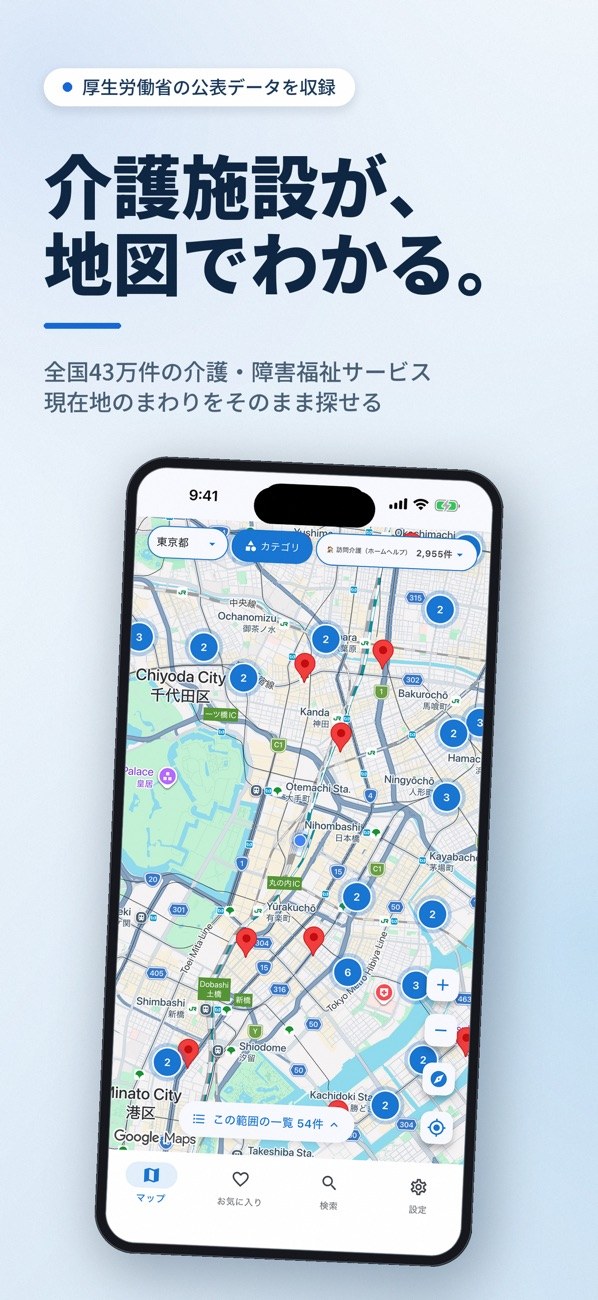
See where facilities cluster on the map
01

See where facilities cluster on the map

Facilities across Japan appear as pins on the map. Where they are dense, pins are grouped into numbered badges so the map stays easy to read. A button at the bottom shows how many facilities are in the current view.

  • Dense areas are grouped into count badges
  • Current-location and zoom buttons on the map
  • "List of this area" shows the number in view
List what is on the map, nearest first
02

List what is on the map, nearest first

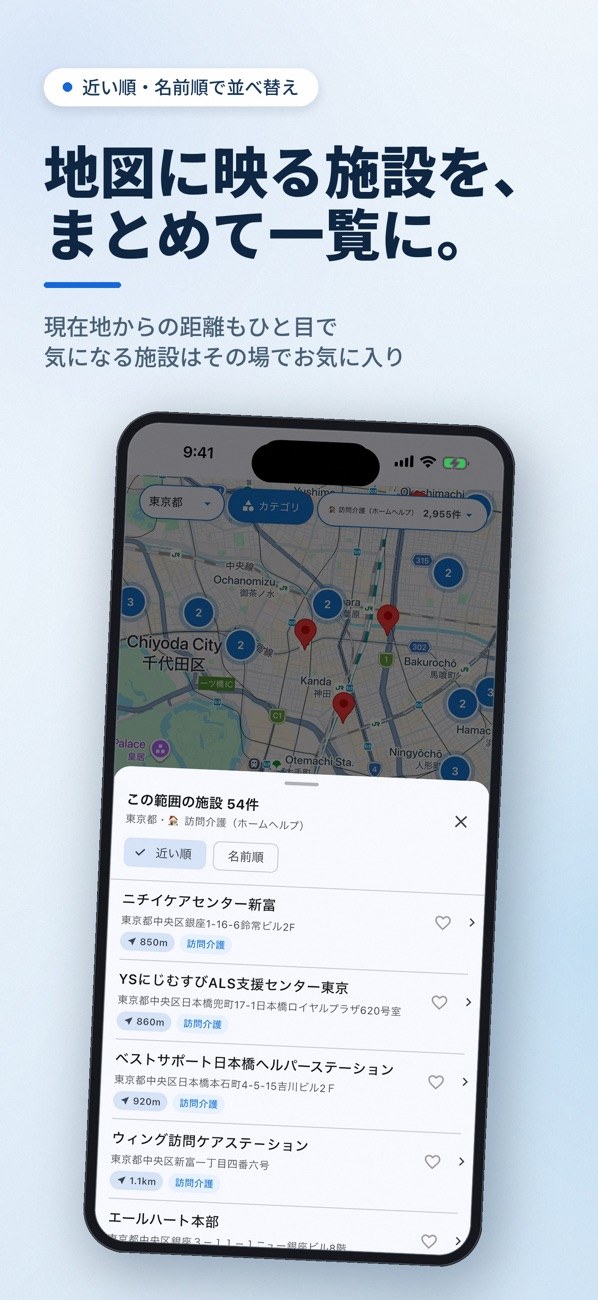
Turn the facilities in the current map view into a single list. Each entry shows its distance from your location, and you can switch between nearest-first and name order. Tap the heart on a list item to save it as a favorite.

  • Sort by distance or by name
  • Distance from your current location
  • Heart icon to add a favorite
Search by part of a name or address
03

Search by part of a name or address

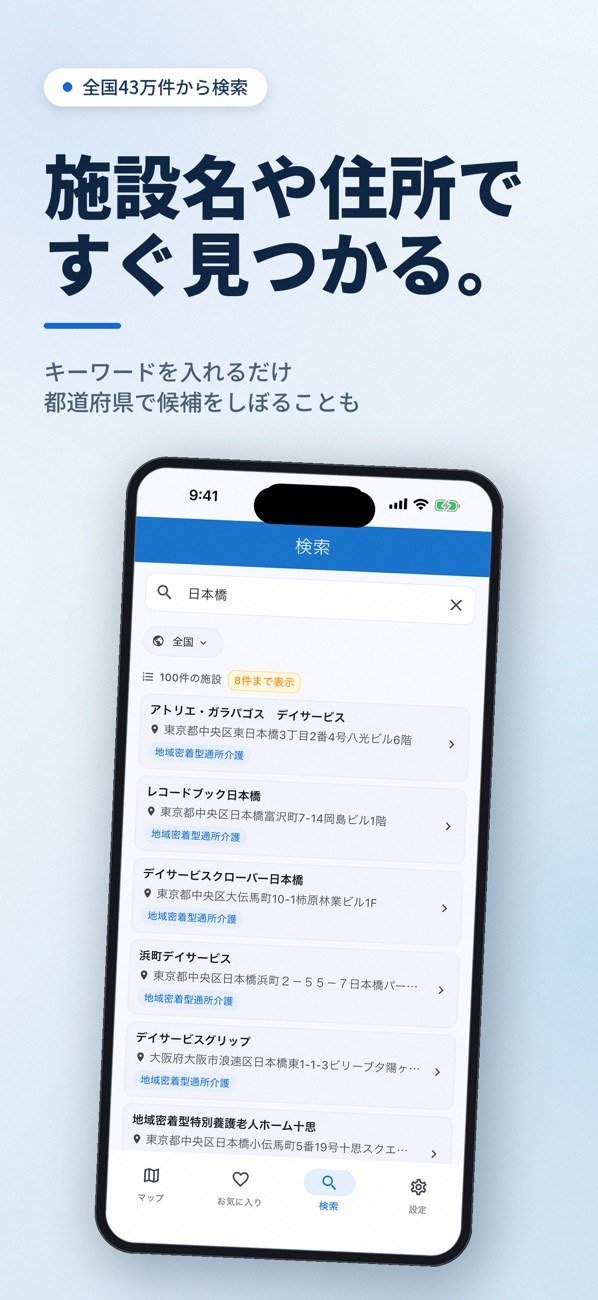
On the Search tab, type part of a facility name or an address. Each result shows its service type, and you can pick a prefecture to narrow the candidates.

  • Keyword search on names and addresses
  • Filter by prefecture
  • Service type shown on each result
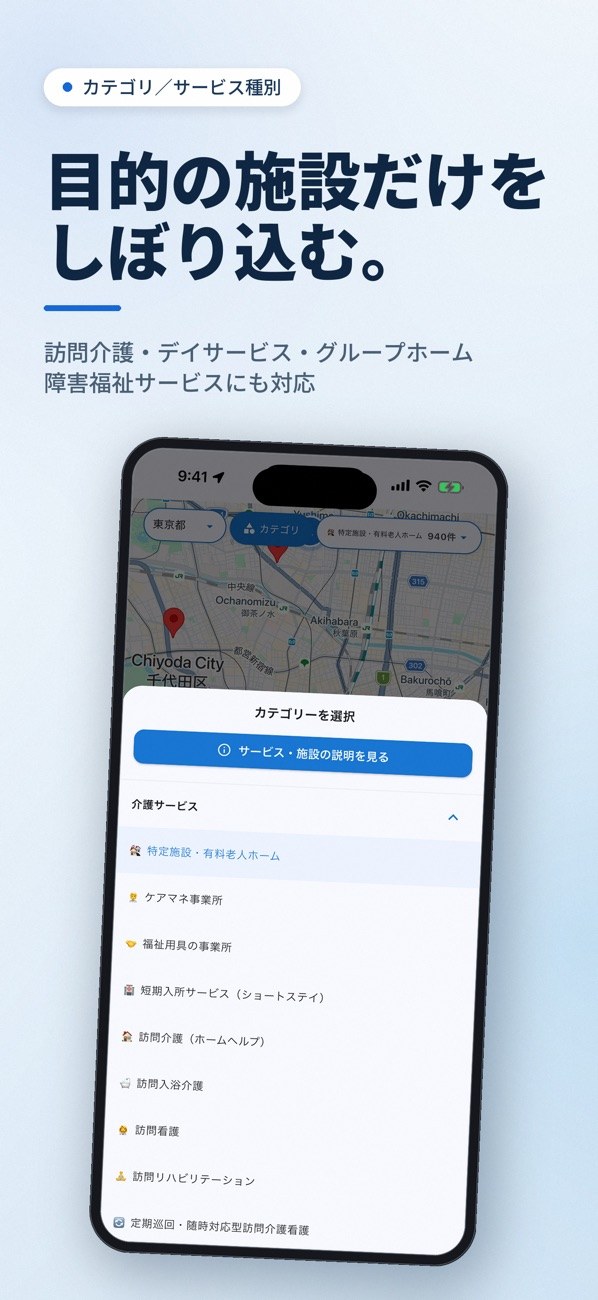
Pick the type of service you need
04

Pick the type of service you need

Use the category sheet to choose a service type, such as home-visit care or care management offices. Disability welfare services are included as well, and the app explains each service type.

  • 9 care categories and 8 disability welfare categories
  • The number of matches shows at the top of the map
  • "View service descriptions" explains each type
From the details screen to a call or a route
05

From the details screen to a call or a route

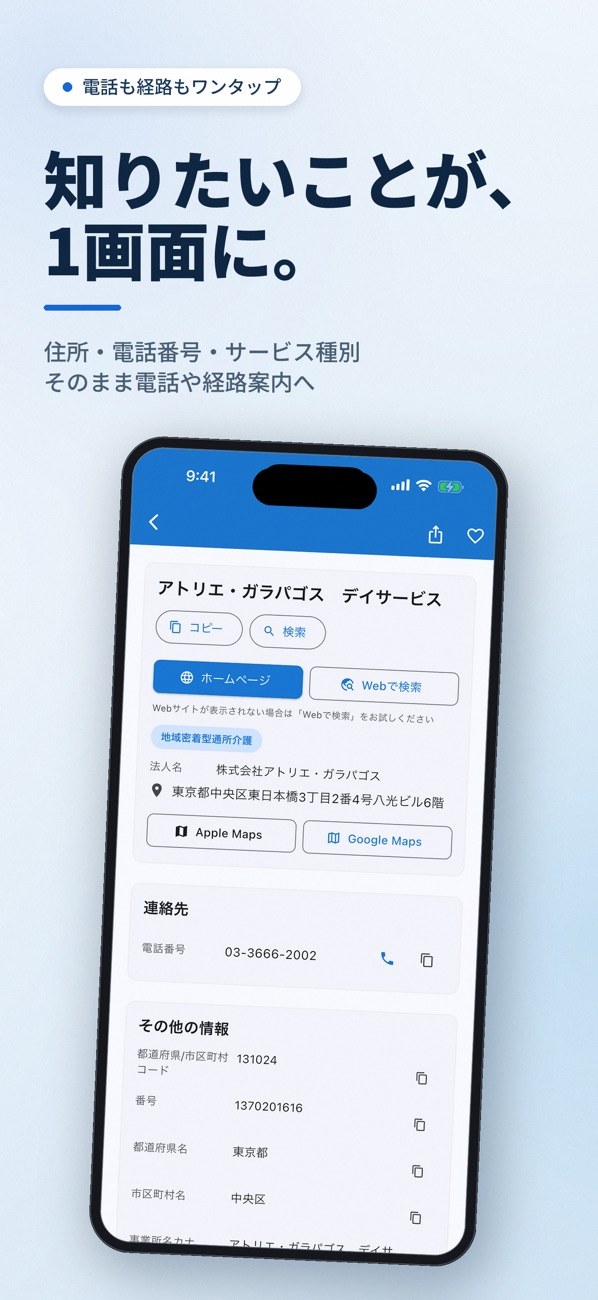
See the address, phone number and service type on one screen. You can place a call, or open directions in Apple Maps or Google Maps, straight from here.

  • Call or copy the phone number
  • Buttons for Apple Maps and Google Maps
  • Open the website, or search the web for it
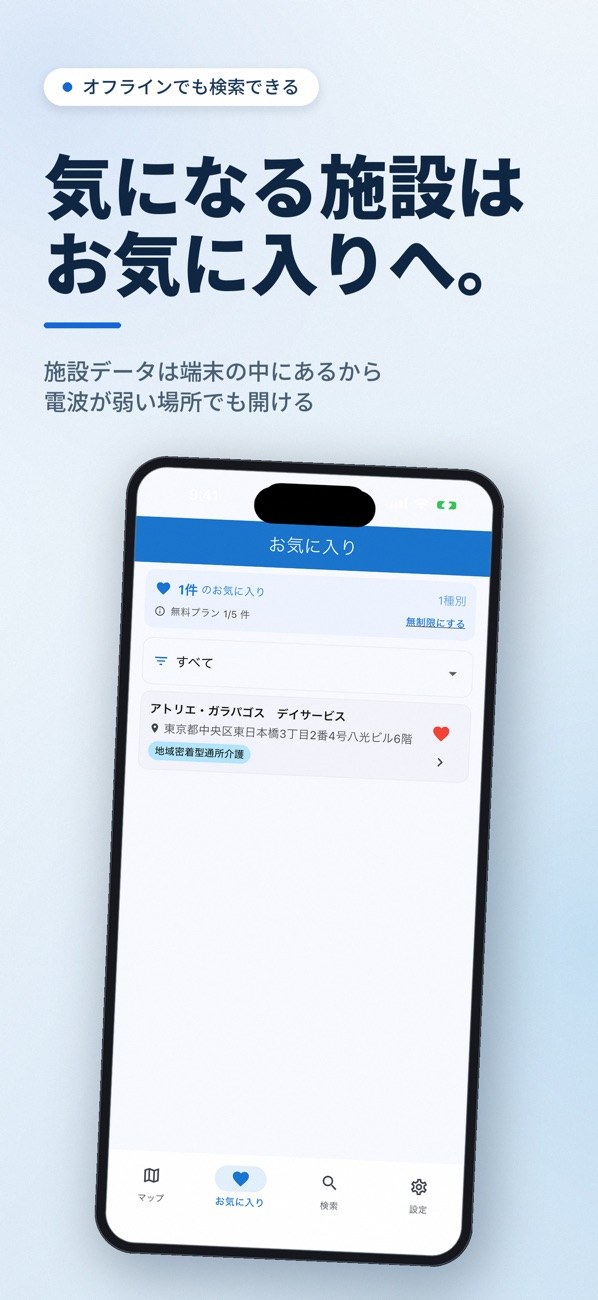
Keep the facilities you want to revisit
06

Keep the facilities you want to revisit

Facilities you save are gathered on the Favorites tab, where you can filter them by service type. The free plan holds up to 5 favorites.

  • All favorites on one tab
  • Filter by service type
  • Favorites carry over when the data is updated

How it works

  1. 1
    Choose a prefecture and a category

    Choose a prefecture and a category

    At the top of the Map screen, pick a prefecture and a category. Facilities that match appear as pins on the map.

  2. 2
    Move the map and browse pins or the list

    Move the map and browse pins or the list

    The facilities change as you move the map. Open "List of this area" to see them nearest-first or by name.

  3. 3
    Open a facility's details

    Open a facility's details

    Tap a pin or a list item to open its details. Check the address, phone number and service type, then call or open directions if you need to.

  4. 4
    Tap the heart to save it

    Tap the heart to save it

    Tap the heart on a list item or on the details screen to add a favorite. Open the Favorites tab at the bottom whenever you want it back.

Screens

Facility pins on the map
Facilities in view, nearest first
Search by name or address
Facility details, call and route
Choose a type of service
Your saved favorites

FAQ

Where does the data come from?

Care service providers come from the Ministry of Health, Labour and Welfare's Long-Term Care Information Disclosure System (open data). Disability welfare providers come from WAM NET's disability welfare service information disclosure system. The source links are in the app under Settings > Data sources.

Is this an official government app?

No. It is an unofficial app made by an individual developer. It is not provided, supervised or endorsed by the Ministry of Health, Labour and Welfare, WAM NET, local governments or any other public body.

Is the information up to date?

The app contains the published data as it was when it was imported. Openings, closures and name changes made after publication may not be reflected. Please check the original sources for the latest, official information. The current data edition is July 2026.

Does it work without an internet connection?

Facility data is stored inside the app, so searching and viewing details work even on an unstable connection. Displaying the map itself needs a connection.

Does it cost anything?

The app is free, and you can search facilities across Japan. It shows ads and offers in-app purchases. The Premium plan hides ads, removes the favorites limit (the free plan holds 5), removes the limit on search results shown, and adds sharing of facility information.

Do I lose my favorites when the data is updated?

When you update the app, the data on your device is replaced with the new edition. The favorites you have already saved are carried over.

Does it use my location?

The app may ask for location permission so it can search around where you are and show distances from your location. For directions, open Apple Maps or Google Maps from a facility's details screen.

Which devices are supported?

iPhone and iPad, running iOS 16.0 or later.

See the care services near you.

Download on the App Store
ケアマップGet